
EP 6: WHY YOUR LAPTOP FEELS SLOW (IT'S THE STORAGE)
DESCRIPTION
"Your laptop shouldn't feel like it's wading through syrup, and the fix is usually storage, not a new machine. This episode untangles the acronyms that confuse everyone: HDD, SSD, NVMe, and M.2, and what each one actually means for boot times, game loads, and general responsiveness.
The key is separating the layers people mix up. HDD versus SSD is the technology, mechanical versus solid state. SATA versus NVMe is the interface, which sets the speed ceiling. M.2 is just the physical shape, not a performance guarantee, which is exactly how people end up paying premium prices for SATA-limited hardware.
I walk through the common scenarios: the brand-new but suspiciously cheap laptop that ships with a spinning disk, the gamer stuck on loading screens, the creator who needs smooth scrubbing and faster exports. You'll leave knowing which words on the spec sheet matter, NVMe and PCIe, and how to buy the upgrade that changes how the computer feels instead of the one that just looks good on paper."
TRANSCRIPT — EP 6
You've probably seen all the acronyms when you're shopping for a brand new laptop, right? HDD SSD NVMe M .2 and then you get the salesperson saying this one's faster. Trust me, bro What if you could actually understand what all that meant in plain English so you know? When it's actually worth paying a little more for or if it's just marketing jargon today We're going to decode your storage. And yes, this is why one laptop feels Slow as molasses and another one snaps open apps in literally seconds. Welcome back to the Tyler Woodward project. I'm Tyler, a broadcast engineer by trade, a Linux nerd by choice, and I enjoy demystifying tech that is supposedly too complicated for people. Storage is a perfect
example of that. The acronyms, well, they scare people off. But once you see the patterns, this stuff is actually pretty straightforward. In this episode, we're going to break down those acronyms that you see everywhere. HDD, SSD, NVMe, and M .2. First, we'll talk about what each one actually is. Mechanical versus solid state, interface versus form factor, all of that. Second, I'll walk you through some real -world stories why a cheap laptop feels so slow What changed when people switched over the SSDs and where NVMe shines versus just sounding fancy? Finally, I'll
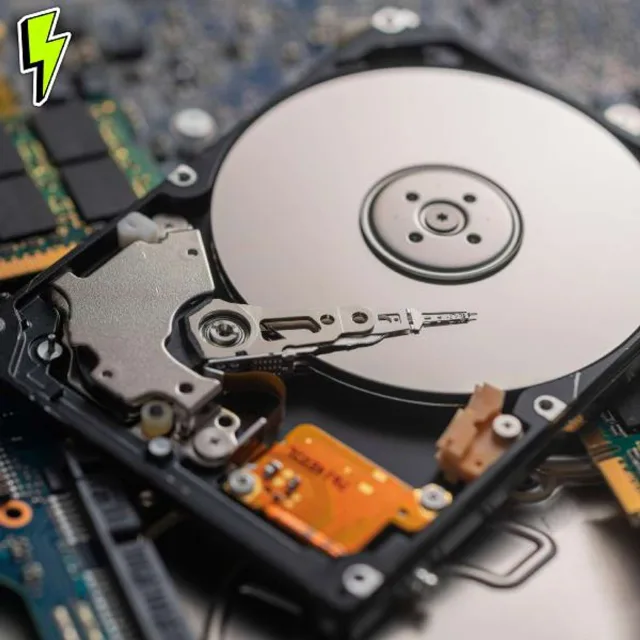
finish it up with a simple if you're going to buy this today Do this kind of rules so you can choose storage without pulling up a spec sheet or a calculator So if you've ever wondered whether NVMe is a type of SSD or why m .2 sticks look so tiny. Stay tuned, we're going to get into this one. Let's start with the oldest of the bunch, HDD, the hard disk drive. An HDD is basically a tiny record player inside your computer spinning a metal disk and a little arm that moves around to read and write data because it's mechanical
it's often slower to start moving slower to jump around to different files and really easy to damage if it gets dropped while it's running the upside is that HDDs are cheap for big old chunks of storage you can get multiple terabytes for not much money which is Kind of why they still live in desktops and external drives for bulk photos, videos and backups. The downside is you'll feel that drag in boot times, game loads and even simple things like opening a browser with a bunch of tabs. Yeah, I'm looking at you, Chrome. Now let's contrast that with SSDs, solid
state drives. An SSD is like a really smart USB flash drive made for your computer. No moving parts, just chips that remember your data even when the power is removed. Because there's no spinning disk to wait on, SSDs are dramatically faster at starting up your system and opening your apps. And they're pretty much resistant to bumps and drops, unlike the hard disk drive. Here's the important bit. SSD is the category, not the speed level. They're... There are slow SSDs and extremely fast SSDs and that's where the other acronyms are going to come in. So,
HDD vs SSD is about mechanical vs solid state. SSD vs NVMe vs SATA vs M .2 is more about how that SSD talks to the rest of the computer. Now... NVMe. NVMe stands for Non -Volatile Memory Express, but the key idea is a modern language for SSDs to talk to your computer over PCI Express, which is the same high -speed highway used by your graphics card. A regular SATA SSD speaks an older language designed for spinning hard drives, so
It hits a ceiling at roughly five times faster than a typical hard drive, while NVMe drives can be several times faster, again because they're not limited by that old standard. Then we have M .2, which is where a lot of confusion happens. M .2 is not a kind of drive in terms of speed, it's a physical shape and connector. Those little gum stick looking drives you see screwed flat onto a motherboard. An M .2 slot can carry either SATA SSD or an NVMe SSD, depending on how the laptop or motherboard is wired, which is why M .2 and NVMe get mixed up so often. you can
have, let's say, a 2 .5 inch SATA SSD that looks like a slim laptop hard drive, an M .2 SATA SSD that's a slim stick, but still limited to SATA speeds, or an M .2 NVMe SSD that uses PCIe and can be way, way faster. From a broadcast engineering point of view, NVMe is great when you got a lot of... Audio or video streams hitting the disk at once it keeps up better under load while older hard drives HDDs start sounding like they're breathing hard trying to keep up Here's the key takeaway for this part HDD versus SSD tells you
physical tech mechanical versus solid state SATA versus MVME tells you the language and speed range 2 .5 inch versus m .2 tells you the shape and connector, not performance by itself. Let's put this into everyday scenarios because specs are fun, but pain is what people actually remember. First scenario, the brand new but weirdly slow laptop. You buy a new machine, the CPU sounds fine on the sticker, the RAM is okay, but it takes a full minute to boot, and another minute to open the browser. That's almost always a sign
it's shipped with a hard disk drive instead of an SSD, especially in cheaper models or older business laptops. Swap that HDD for an even basic SATA SSD, and the same machine can feel like an entirely different computer. Windows or Linux, they'll boot in seconds instead of a full minute, and apps pop right open instead of grinding your system to a halt. This is why upgrading storage is often the single biggest speed improvement for an older PC or a laptop. Second scenario, gaming or creative work. For gaming, moving from HDD to any SSD cuts load times dramatically.
Going from SATA SSD to NVMe SSD Usually shaves off a little more time, but you'll see less difference than that first jump just because well Unless the game is specifically built to stream data heavily like some more modern titles for photo audio or video editing the benefit depends on your workflow if you're constantly loading and scrubbing large files NVMe can keep things feeling smoother because it handles lots of requests and high throughput better than SATA. If you mostly work on smaller projects, a solid SATA SSD may already feel instant enough. Third scenario.
Tiny laptops and weird labels. A lot of slim laptops only have room for M .2 drives, so you'll see M .2 SSD on the spec sheet without NVMe or SATA spelled out. And many modern machines, an M .2 slot is wired for NVMe, but some budget systems still use M .2 SATA, which means you get the small form factor, but not the fastest speeds possible. Why this matters? Well, storage often outlives the laptop or desktop it started in. Buying a good SSD now means you might move it into an external enclosure later and keep using it as a fast portable storage device instead
of throwing it away. Understanding what you're buying helps you avoid paying NVMe prices for something that's actually limited by SATA. Let's turn this into a simple cheat sheet you can actually use while shopping or upgrading your system. Here's a quick table to frame the differences. HDD. What it really is. It's a mechanical spinning hard drive. Typical use today. If you need cheap bulk storage backups or archives. That's SATA SSD. That's the solid state drive on SATA. Great all around system drive. big upgrade from the hard disk drive, the HDD. NVMe SSD, that's the
solid state drive, using NVMe over PCIe, high speed system drive, heavy gaming, editing, any kind of workflow like that. That M .2 form, that's the little gum stick shaped connector form factor dealy. It's a physical format, it can be SATA or NVMe. Now some simple rules of thumb. If a computer still has an HDD as the main drive and you can upgrade it, putting any SSD should be your first move. If you're choosing between SATA SSD and NVMe for everyday use, like web, surfing, office, applications, light gaming, pick whichever
is a better deal. Both will feel fast compared to that HDD. If you edit large video projects, run VMs or do any type of heavy creative work, NVMe is worth the extra few dollars for that smoother performance under heavy load. When you read the spec sheet, look for the words SSD first. That's the biggest jump over HDD. Then look for NVMe or PCIe if you want the higher end options. Treat M .2 as a shape word, not a speed word. Check if it says M .2 NVMe or M .2 SATA. That's
what you want to look out for. If you're not sure what fits your system, desktops usually accept 2 .5 inch SATA SSDs really easy and many modern boards have one or more M .2 slots. Laptops may only have space for one 2 .5 -inch bay or one M .2 slot, so checking the model's manual or a quick search by model number is worth doing before you hit purchase. So next time someone throws HDD, SSD, NVMe, and M .2 at you, like alphabet soup, you'll know what's actually going on under the hood. More importantly, you'll know
which upgrade actually makes your computer feel faster, instead of just chasing buzzwords on tech websites. Visit TylerWoodward .me, follow at TylerWoodward .me on Instagram and threads, subscribe and like the show on your favorite podcast platform, and I'll catch you next week.